iPhone · iPad · Genuine App

Shadowrocket Setup Guide

Follow the practical workflow from genuine-app verification through configuration, connection, and troubleshooting. It covers iPhone and iPad, Global Routing rules, and one-time purchase basics.

Global Routing One-time purchase $2.99 Shadowsocks VMess WireGuard
Shadowsocks
VMess
Trojan
WireGuard
On Demand
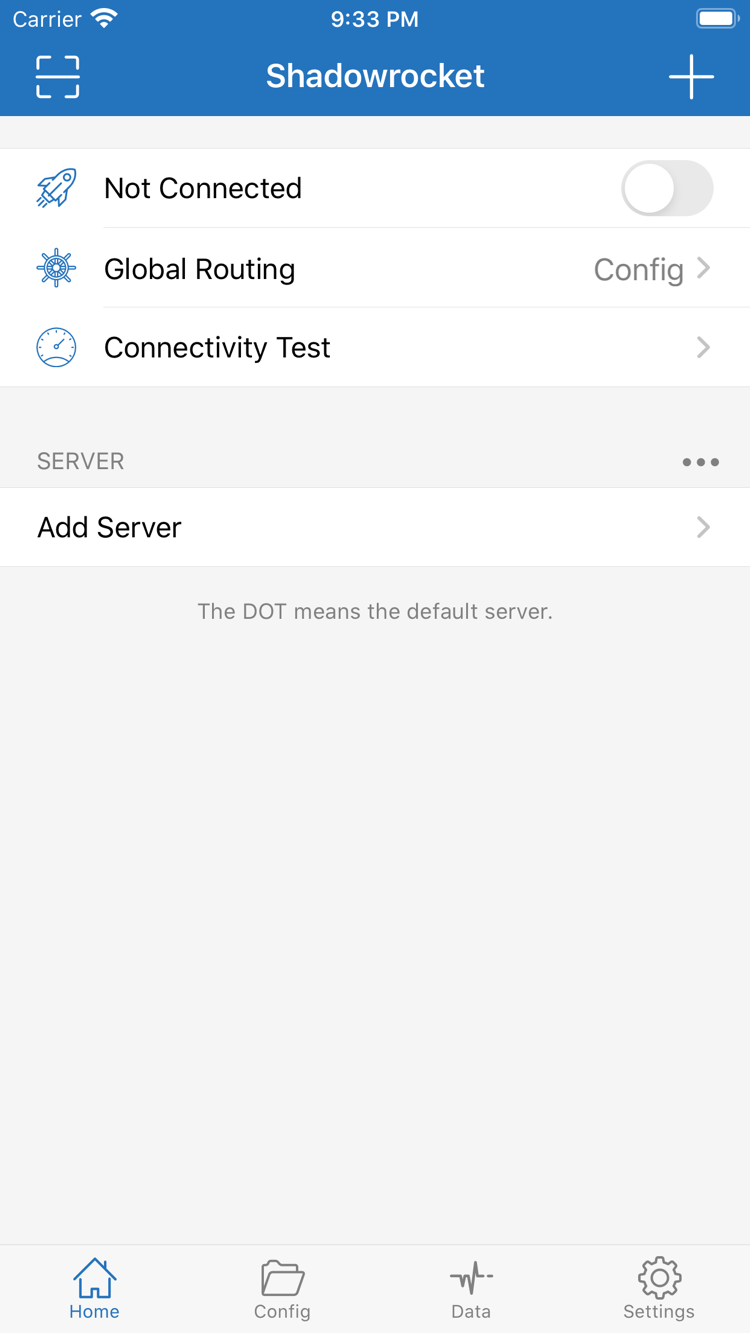
Shadowrocket Home: Not Connected, Global Routing, Add Server
Home: Not Connected, Global Routing, Add Server

Core Features

From importing a configuration to rule-based connections

Shadowrocket’s main settings are organized across Home, Config, Data, and Settings. The sections below explain each feature by use case while keeping interface labels, protocol names, and rule keywords in their original English.

✦ Global Routing

Use rules to determine the connection strategy for each request

Global Routing in Home determines how traffic is handled. Config uses the rules in the current configuration file, Proxy sends traffic through the currently selected server, and Direct connects without a proxy. When using a rule file, Config is usually the right choice; then open Config to review the order of DOMAIN-SUFFIX, GEOIP, IP-CIDR, and FINAL. Rules are matched from top to bottom, and matching stops at the first hit, so specific rules should come before broader ones.

Effective routing is not about the number of rules but about clear targets: which domains use PROXY, which addresses use DIRECT, and which requests need REJECT. After making changes, return to Home and reconnect, then verify the result with an actual webpage and Log instead of checking server latency alone.

Review Routing Settings
GLOBAL ROUTING
ConfigSelected
ProxyMode
DirectMode
RULE
DOMAIN-SUFFIXPROXY
GEOIPDIRECT
FINALPROXY

Devices & Store Access

View App Store access instructions by device

The App Store is the only place to get Shadowrocket. Before purchasing, verify the developer name and app ID; system requirements, price, and compatibility are subject to the current product page.

iPhone

Suitable for switching between networks on the go and for On Demand scenarios. On the store page, first confirm the developer Shadow Launch Technology Limited and app ID 932747118, then complete the purchase. The first connection may show a system prompt to authorize VPN configuration; this is required to create the device’s network configuration. See the App Store page for current system requirements.

View iPhone Guide

iPad

Useful for organizing servers, Config, and rules on a larger screen. With the same Apple ID used for the purchase, find Shadowrocket in the App Store’s purchased items. The iPad layout may change with screen orientation, but Home, Config, Data, and Settings serve the same purposes; see the App Store page for current system requirements.

View iPad Guide

Check these three details on the store page

When search results show similarly named apps, do not rely on the name alone. Check the developer, official icon, and app ID in the product-page URL, then use the price and compatibility shown on the store page to decide whether to purchase.

View Access Steps →
On the App Store View Shadowrocket

Quick Start Preview

Complete your first connection in three stages

The steps below assume that the user already has their own server information or subscription URL. Check the result after each step before continuing, making it easier to identify the exact stage if something goes wrong.

01

Add a server or import Subscribe

To add a server manually, open Add Server from Home, choose the correct protocol, and enter Address, Port, and authentication fields. For an existing subscription, open Subscribe, paste the complete URL, and update it. Do not change many parameters immediately after importing; first confirm that the expected entry appears and that its name, protocol type, and basic fields match the original information.

02

Choose a server and Global Routing

Select the server to use in Home, then set Global Routing according to your goal. Choose Config when a complete rule configuration is available, Proxy when all requests should use the current server temporarily, and Direct when a direct connection is required. For the first test, keep one mode fixed, confirm basic connectivity, and then adjust DOMAIN-SUFFIX, GEOIP, IP-CIDR, and FINAL in Config.

03

Turn on the connection and verify real requests

Turn on the connection switch in Home and allow the VPN configuration when prompted by the system. Once connected, visit a webpage that needs testing and use Connectivity Test together with Log to assess the result. Server latency reflects only part of connectivity; if latency is visible but the page will not open, also check DNS, rule matches, server status, and the current local network.

Genuine App & Purchase Facts

Use the App Store product page as the reference

Shadowrocket is a closed-source commercial application. This site is an unofficial user guide; purchase and installation should be completed directly through the App Store product page, using the information currently shown there.

Developer: Shadow Launch Technology Limited App ID: 932747118 One-time purchase iPhone & iPad

Store Availability

Check the current Apple ID storefront first

App Store storefronts display prices in local currencies, and search results and purchase status depend on the storefront associated with the current Apple ID. The US page shows a one-time price of about $2.99; the final amount is determined at checkout. If the app cannot be found, first check the storefront in use, network connection, and App Store sign-in status rather than relying on old screenshots online.

The product page also lists current system requirements and compatibility. Because this information may change, this site does not maintain fixed version requirements; whether iPhone and iPad can install the app should be checked on the App Store page.

Three Checks

Confirm the developer, icon, and app ID together

First, check the developer name on the product page: Shadow Launch Technology Limited. Second, verify the app icon instead of relying only on the name in search results. Third, check the product-page URL, which should contain id932747118 and correspond to app ID 932747118. Together, these three checks are more reliable than searching only for “Shadowrocket.”

After reaching the correct product page, review the price, system requirements, and compatibility section. This site explains identification and operation; it does not replace the real-time product information displayed by the App Store.

Purchases & Redownloads

Find purchased items under the same account

Shadowrocket uses a one-time purchase. If the app was purchased with an Apple ID, find it in that account’s App Store purchased items. When switching to a new iPhone, installing on iPad, or setting up a device again, first confirm that the signed-in account is the one used for the purchase, then check the purchase history. Whether it can be redownloaded directly and the specific availability of Family Sharing depend on what the App Store shows at the time.

App updates are managed by the App Store. Automatic updates depend on the device’s App Store settings, and users can also check pending updates in the store.

App & Network Services

Separate the client purchase from connection information

A client purchase ≠ a connectivity plan. Buying Shadowrocket only provides the client itself; it does not include servers, nodes, or subscription content. Before adding a server, importing Subscribe, or using rules, users must already have server information or a subscription URL they are authorized to use, and select the correct protocol according to the provider’s parameters.

This site does not provide any nodes or subscriptions. It only explains where to enter information in Shadowrocket, what interface labels mean, how rules work, and how to troubleshoot. Connection quality depends on the local network, server status, route, protocol parameters, DNS, and rule configuration, and cannot be judged solely by whether the client purchase succeeded.
Featured FAQ

Four things to check before and after connecting

These questions cover the most common decision points during first use. For a fuller categorized Q&A, open FAQ; item-by-item explanations of settings are collected in the Settings Guide.

Why didn’t a server appear automatically after purchase?

Shadowrocket’s one-time purchase includes only the client. Use server information you already have to fill in Add Server manually, or add an existing subscription URL in Subscribe. After importing, verify the protocol type and fields before running Connectivity Test.

Should Global Routing be set to Config, Proxy, or Direct?

Choose Config to route traffic according to the current configuration file; choose Proxy to send all requests through the current server; choose Direct for a direct connection. When troubleshooting, keep one mode fixed at a time and record the actual result before and after switching.

Connectivity Test returns a result, but webpages still will not open. What should I do?

A test result is not the same as complete webpage access. Check Log to see whether a connection was established, whether the rule matched PROXY or DIRECT, and review DNS resolution, current server status, and the local network. You can temporarily turn off On Demand to reduce the effect of automatic conditions during troubleshooting.

How can I confirm that I found the genuine Shadowrocket?

Open the App Store product page and verify the developer Shadow Launch Technology Limited, official icon, and app ID 932747118. Check current system requirements, price, and compatibility on the product page.

Download on the App Store